In the last post I showed two different designs and approaches for taking notes in lectures. They both have their advantages and drawbacks. It was important to also consider that Andrew's needs are different in lectures and out of lectures. In lectures times are constrained and it is possible for important information to be conveyed while Andrew is trying to do something else. While he is trying to get a photo of a worked example on the board the lecturer may be talking about a related but different concept that also should be included in the notes. This makes it important that actions are not atomic, that a task can be temporarily paused whilst a higher priority task is addressed.
This is not true when reviewing and editing notes outside of a lecture, here Andrew has considerably more time to complete tasks and it probably is best not to encourage him to jump around too much.
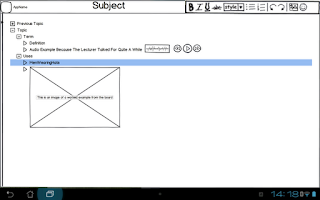 The outliner approach does not really need any adjustment from inside to outside of lectures, the non-text elements (images and sound bites) can easily be covered in surrounding text. The only obvious visual difference is that the Outliner does not need the sidebar in this mode.
If I choose to go with the outliner process, it is probably not really worth differentiating between the two different modes of lecture creation. The only consideration is whether or not it is worth removing the sidebar to provide more screen real estate.
The annotator is a lot more hungry for screen space. In the lecture, new notes are created by tapping the screen, creating those yellow dots. Only the note that is currently being created/edited is expanded.
Outside of the lecture, the default is for all notes to be expanded, this also means the app automatically rearranges the notes to remove any overlaps. When the notes are expanded they should not obscure any elements in the original notes nor should they obscure other expanded notes. The idea here is that the yellow dots remain but an arrow is automatically generated pointing to the expanded note. Expanded notes are automatically sized based on the amount of information contained.
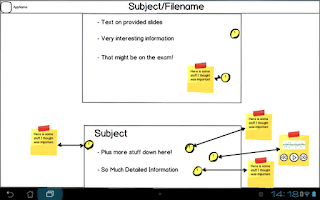 A short tap will hide the expanded note. Which allows Andrew to hide information he is not currently trying to revise this will also cause nearby notes to try to automatically rearrange themselves.
A long tap brings up the note into a much larger mode for further editing. It is here where the editing tools are found, primarily based around adding and formatting further text. The plan is to use pretty standard text editing settings, the ability to change font size, bold
 There aren't any plans to include picture or audio editing tools here. A further long press on the non-text element in a note should allow Andrew to open the image/sound in another application on the device that has told Android that it is an app that can handle pictures or sound. Ideally he will then actually choose an image editing app rather than a gallery or music playing program.
Again, I would be very interested in hearing feedback on this design.
In order to try to encourage comments on this series, the best comment on any post on my blog with the design tag made before 11:59PM on 12/07 will get their choice of The Orange Box, The Ship or Cthulhu Saves the World and Breath of Death. Provided they also provide me with contact details.
This is not true when reviewing and editing notes outside of a lecture, here Andrew has considerably more time to complete tasks and it probably is best not to encourage him to jump around too much.
Outliner
 The outliner approach does not really need any adjustment from inside to outside of lectures, the non-text elements (images and sound bites) can easily be covered in surrounding text. The only obvious visual difference is that the Outliner does not need the sidebar in this mode.
If I choose to go with the outliner process, it is probably not really worth differentiating between the two different modes of lecture creation. The only consideration is whether or not it is worth removing the sidebar to provide more screen real estate.
 PDF Annotator
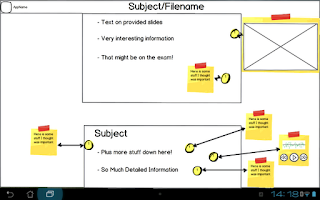
The annotator is a lot more hungry for screen space. In the lecture, new notes are created by tapping the screen, creating those yellow dots. Only the note that is currently being created/edited is expanded.
Outside of the lecture, the default is for all notes to be expanded, this also means the app automatically rearranges the notes to remove any overlaps. When the notes are expanded they should not obscure any elements in the original notes nor should they obscure other expanded notes. The idea here is that the yellow dots remain but an arrow is automatically generated pointing to the expanded note. Expanded notes are automatically sized based on the amount of information contained.

A long tap brings up the note into a much larger mode for further editing. It is here where the editing tools are found, primarily based around adding and formatting further text. The plan is to use pretty standard text editing settings, the ability to change font size, bold

Again, I would be very interested in hearing feedback on this design.
In order to try to encourage comments on this series, the best comment on any post on my blog with the design tag made before 11:59PM on 12/07 will get their choice of The Orange Box, The Ship or Cthulhu Saves the World and Breath of Death. Provided they also provide me with contact details.


