Showing posts with label Design. Show all posts

Thursday, 5 July 2012

Note Taking App - Edit and Review Mode UI Design

In the last post I showed two different designs and approaches for taking notes in lectures. They both have their advantages and drawbacks. It was important to also consider that Andrew's needs are different in lectures and out of lectures. In lectures times are constrained and it is possible for important information to be conveyed while Andrew is trying to do something else. While he is trying to get a photo of a worked example on the board the lecturer may be talking about a related but different concept that also should be included in the notes. This makes it important that actions are not atomic, that a task can be temporarily paused whilst a higher priority task is addressed.

This is not true when reviewing and editing notes outside of a lecture, here Andrew has considerably more time to complete tasks and it probably is best not to encourage him to jump around too much.
Outliner

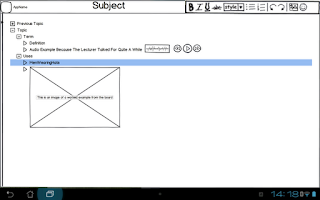
Look ma! No Sidebar!The outliner approach does not really need any adjustment from inside to outside of lectures, the non-text elements (images and sound bites) can easily be covered in surrounding text. The only obvious visual difference is that the Outliner does not need the sidebar in this mode.

If I choose to go with the outliner process, it is probably not really worth differentiating between the two different modes of lecture creation. The only consideration is whether or not it is worth removing the sidebar to provide more screen real estate.

So many arrowsPDF Annotator

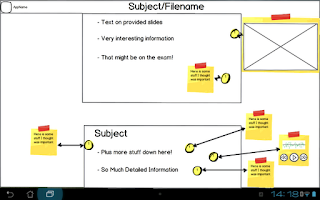
The annotator is a lot more hungry for screen space. In the lecture, new notes are created by tapping the screen, creating those yellow dots. Only the note that is currently being created/edited is expanded.

Outside of the lecture, the default is for all notes to be expanded, this also means the app automatically rearranges the notes to remove any overlaps. When the notes are expanded they should not obscure any elements in the original notes nor should they obscure other expanded notes. The idea here is that the yellow dots remain but an arrow is automatically generated pointing to the expanded note. Expanded notes are automatically sized based on the amount of information contained.
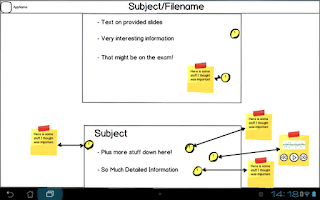
There are two differences between this and the previous image, can you find them?
A short tap will hide the expanded note. Which allows Andrew to hide information he is not currently trying to revise this will also cause nearby notes to try to automatically rearrange themselves.

A long tap brings up the note into a much larger mode for further editing. It is here where the editing tools are found, primarily based around adding and formatting further text. The plan is to use pretty standard text editing settings, the ability to change font size, bold

There aren't any plans to include picture or audio editing tools here. A further long press on the non-text element in a note should allow Andrew to open the image/sound in another application on the device that has told Android that it is an app that can handle pictures or sound. Ideally he will then actually choose an image editing app rather than a gallery or music playing program.

Again, I would be very interested in hearing feedback on this design.

In order to try to encourage comments on this series, the best comment on any post on my blog with the design tag made before 11:59PM on 12/07 will get their choice of The Orange Box, The Ship or Cthulhu Saves the World and Breath of Death. Provided they also provide me with contact details.


Wednesday, 27 June 2012

Note Taking App Note Lecture-mode UI Design

Given the feedback I have received regarding the purpose of notes, I have formulated 2 designs based around two different approaches. I am going to focus on the Lecture Mode note taking UI for this post. I was reminded by a friend at lunch that I don't need to use the same UI for both lecture mode and (re)viewing.

The Lecture Mode Sidebar
The Lecture Mode sidebar is meant to allow for easier and faster photo and audio integration into notes. The key idea is that taking a  photo or performing audio recording should not be atomic tasks (i.e. a task that has to be both started and completed before other actions are taken). The standard android conventions for photography involve literally moving the user into a photo taking application (which occupies the entire screen) and only returning once the photo has been taken.
The camera pane in this sidebar will show a live thumbnail of whatever the rear facing camera is showing. A single tap will take a photo and add it into the notes, pinching will zoom the camera in and out, and a long press will bring up a menu with basic camera controls (most importantly a control to swap between multiple cameras in case the app accidentally picks the front facing camera).

The Audio recording controls consist of "Record", "Stop" and "Oh Shit That Sounded Important". There is no playback button there, because once the audio is saved into the notes the playback controls are attached to the audio snippet.

The Oh Shit button is a little more complicated. The app will automatically record whilst it is running, keeping the last say 90s of audio. The idea is that if Andrew loses focus and stops paying attention then realises that what is being discussed was probably important, he can press the big red button and the last 90 seconds is automatically saved and audio will continue to be recorded until the stop button is pressed. I have to give Kaz the credit for this idea, it seems like a great way to deal with lapses in concentration.

I am not actually sure what I would do with the rest of the sidebar space, it could be used for some of the menu functions like save and load, or it could be eliminated and some of the other elements enlarged. The sidebar can also be swapped from one side of the screen to the other though a settings menu.

Outlining
This is the first of the two note taking ideas I have had. In this approach Andrew makes his own notes during the lecture and these notes are assembled into a tree structure. Sections of the tree can be dynamically expanded and collapsed and the notes can be easily rearranged by moving one branch to another section of the trunk.

This approach leads to a natural summarisation process and allows easy skimming of notes to find terms associated with particular topics. Information can be hidden when trying to test knowledge and Andrew only needs to go into detail in sections where he is less confident of his own knowledge.

The obvious downside of this approach is that the lecture slides that are typically provided are can't really be utilised. They could be added via photos or added as pictures but the bulk of the notes must be created by Andrew during the lectures. This approach emphasises the note principles 2 and 4. Notes are summaries of what is covered in lectures and notes are easily skimmed.

PDF Annotation
The other approach is to use the slides provided. Assuming that either they will already be PDFs or can easily be converted into PDFs, this approach then creates a layer that is placed over the top. In Lecture Mode you simply tap a spot on the slides and start typing and this becomes an annotation. Andrew doesn't need to write down everything, he simply needs to add any particular detail that is missing from the slides. When a given note loses focus it immediately collapses into a small dot to avoid taking up too much space. It can be reselected and modified but the focus is around creating new annotations.

It is this approach that really emphasises different UIs for note taking and note (re)viewing. In a later post I will talk about my ideas for how the annotated notes would look in a non-lecture mode.

I would really appreciate feedback and thoughts on these designs and how you think they could be improved.

Monday, 25 June 2012

Lecture Note Taking App - What Makes Good Lecture Notes

I have conducted an extremely informal survey with friends about what makes for good lecture notes and about the very purpose of taking lecture notes.

Firstly it would seem that, as most of the time the lecture slides are provided, like me most of my friends don't actually take much in the way of lecture notes. At best the provided slides will be annotated during lectures. It is only really during subjects where no notes are provided that note taking actually takes place. It was generally felt that it was better to be able to pay more attention in lectures rather than spend time writing down everything that is either put up or is said by the lecturer.

The principles I have derived for notes are:
  1. The purpose of lecture notes is to aid revision and to provide reference material for assignments.
  2. Lecture notes are a summary of the topics covered in lectures.
  3. Notes are not necessarily completed in lectures
  4. It should be easy to find particular topics and areas in notes (aka Notes are well indexed)
The goal of this app is to make good notes. The design of the app is intended to encourage the user to create good notes and to use them for later reference and study. This means that as well as pleasing our primary persona Andrew, I need to create a design that addresses these points.

I admit I already have a design in mind, but I would like your feedback, ideally prior to seeing what design I currently have in mind. What would you add to or change about these principles regarding good notes?

The best answer in the comments on this site will get a Steam code for Bastion.


Thursday, 14 June 2012

Lecture Note Taking App - Persona Design

This is my first time doing this and so it is more than likely that I am going to be making mistakes during this process. Hopefully I will learn from them, please don't hesitate to point them out.

I have talked to various people about this idea and had hesitated about what I should be putting online and what I should be keeping private, but this is not really intended to be a business venture or anything. It is mostly about creating an app that fills my own needs that could possibly be used by other people.

I bought an ASUS Transformer Prime at the beginning of the year for uni, I was after something to replace my m11x whose hinges had broken making it somewhat less transportable. When it is in its keyboard dock the Transformer Prime looks and feels almost like a laptop. It does have one key difference for lecture use compared to a laptop however. It has a back facing camera. And in a keyboard dock you can actually use that camera whilst still also typing and making notes. I was simply unable to find an app to do this, it could be that it is not very easy to do on Android, I could be terrible at searching the market or it could be a fairly small niche that no one has really served yet, still it is a need I would like to fill.

However, because it is running a mobile OS and not say, Windows, you can't have the same multitasking environment, I can't actually use both the camera and a note taking app at the same time, any time you take a picture/record a video, you kind of bring up a camera app over the top of the note taking app and can't actually take any notes until the picture is taken or video recorded.

So the basic idea is a note taking app that also lets you record video at the same time, record the lecture and take notes and possibly then further combine the two. So record a time stamp at each new line, so even if you aren't playing the video you can sort of page through, be able to replace the video with the lecture slides, etc.

After talking to some friends and reading The Inmates Are Running The Asylum I realised I should be actually designing first, not kind of half forming an idea and charging off into learning how to write software for android. So here I am going to try my hand at writing up the Persona.

This image also picked totally at random
Name: Andrew (picked totally at random)
Occupation: Student, Previously worked in IT
Age: 26
Goal: To Create Good (useful) Lecture Notes for later revision
Other information: Andrew likes to try new things but does not often stick with them, he will try creating notes in a variety of systems. He participates in class but often uses computers not for taking notes but for distraction.


I think that the first task to answer is what makes for good lecture notes? I can't say I am actually entirely sure of the answer. When it comes to studying for tests I tend to actually primarily use the lecture slides provided by the lecturer and make some notes from there, especially audio ones that I can play in the background whilst I am doing other tasks.

Given the target device (Transformer Prime), what capabilities do we have for creating them? There is a microphone, 2 cameras, a Touch Screen and a physical keyboard.

Actually answering what makes for good lecture notes I think is the step I have previously avoided. I initially started thinking about this with the back facing camera and video firmly in mind. I am not so sure of this anymore, certainly I still think that recording audio is useful, but video seems less vital especially when pictures and/or lecture slides would likely work just as well.

Friday, 11 May 2012

Finished: The Inmates are Running the Asylum: Why High Tech Products Drive Us Crazy and How to Restore the Sanity

The Inmates are Running the Asylum is a book by Alan Cooper about software design. Primarily that the culture around software design is pretty terrible and basically involves the wrong people (programmers) doing most of the design work.

It was written in the late 90s and fortunately the interface designs we see these days have improved, but this diminish the books fundamental points about approaches to design and project management.

The key problem with design by programmers is that programmers do not think like regular people, to be a good programmer you need to focus on ensuring that edge cases are handled and any given task should be either only completable once or an infinite number of times.

Normal people do not think this way, they think in terms of the general case, they also generally don't handle infinities most people are dealing with dozens of items at most.

The approach laid out in the book is to create and use personas associated with your product. These personas have names and characteristics. The point is to determine which persona(s) you are designing for. The point is not to make everyone slightly less unhappy, a great design is meant to make people that match that particular persona ecstatic.

This is something Apple does very well, they do not provide a lot of options, but they manage to instill loyalty in a great number of people because their designs make their products a joy to use for those people.

The other idea that I took from this book was to ensure when designing to focus on the goal, not on the individual tasks. Goals don't change much, tasks do. Tasks change with new technologies and changing costs.

I actually realised that the core idea behind my app was task based, it was more focused on the idea that I have this rear facing camera and microphone I want to use while taking notes. The goal is to get good and useful lecture notes, which means that I probably should take a slightly different approach.

The book was an interesting read, certainly not one I would have picked up myself, but a good one for anyone planning on creating software that they would like other people to enjoy using.